Shopify Flow میں شرائط
جب کچھ اصول پورے ہو جاتے ہیں تو شرائط ایک ورک فلو کو جاری رکھتی ہیں، جیسے کہ if-then اسٹیٹمنٹ کا آغاز۔ جب آپ کوئی شرط سیٹ کرتے ہیں، تو آپ GraphQL Admin API (جیسے کہ product.title) کی فیلڈز سے کوئی معیار، ایک منطقی آپریٹر (جیسے کہ equal to)، اور جانچنے کے لیے ایک قدر (جیسے کہ Blue jeans) منتخب کرتے ہیں۔ جب کوئی ورک فلو کسی شرط کا جائزہ لیتا ہے، تو Flow آپ کے اسٹور کے لیے واپس کی گئی قدر کے خلاف ورک فلو میں متعین کردہ قدر کو چیک کرتا ہے، پھر نتائج کو ورک فلو رن میں ظاہر کرتا ہے۔ شرائط کی وضاحت کے لیے دستیاب فیلڈز اور اقدار کو بہتر طور پر سمجھنے کے لیے، اسٹور کے ڈیٹا کا پیش نظارہ کرنے کا طریقہ جانیں۔
شرائط کی بنیادی باتوں کو سمجھنے کے بارے میں مزید جانیں۔
اس صفحے پر
Flow کے ساتھ استعمال ہونے والی ڈیٹا کی اقسام
جب آپ کوئی شرط سیٹ کرتے ہیں، تو آپ Admin API میں دستیاب فیلڈز سے ایک معیار منتخب کرتے ہیں اور Flow آپ کے اسٹور کے لیے واپس کی گئی قدر کے خلاف اس کا جائزہ لیتا ہے۔
Flow درج ذیل قسم کے ڈیٹا کو سپورٹ کرتا ہے:
- فلوٹ: فلوٹ کی اقدار اعشاریے والی رقم پر مشتمل اعداد ہوتے ہیں۔ مثال کے طور پر، 4.25۔
- انٹیجر: انٹیجر کی اقدار مکمل اعداد ہوتے ہیں جن میں اعشاریے والی کوئی رقم نہیں ہوتی ہے۔ مثال کے طور پر، 42۔
- تاریخ: تاریخ کی اقدار تاریخ کی عددی نمائندگی ہوتی ہیں۔ مثال کے طور پر، 01012021۔
- سٹرنگ: سٹرنگ کی اقدار ٹیکسٹ ہوتی ہیں۔ سٹرنگ کی اقدار کا استعمال کرنے والے موازنے کیس حساس (case sensitive) نہیں ہوتے ہیں۔
- بولین: بولین اقدار یا تو درست ہوتی ہیں یا غلط۔
- اینم: اینم اقدار ڈیٹا کے ایسے سیٹ ہوتے ہیں جو متغیر کو پہلے سے متعین مستقل اقدار کا ایک سیٹ ہونے کی اجازت دیتے ہیں۔
منطقی آپریٹرز
منطقی آپریٹرز اس بات کی وضاحت کرتے ہیں کہ آپ کی شرط کا اطلاق کیسے ہوتا ہے۔ شرائط سادہ خصوصیات کو چیک کر سکتی ہیں جیسے کہ آیا کسی آرڈر کا ٹوٹل ایک مخصوص رقم سے زیادہ ہے، یا آیا کوئی کسٹمر مارکیٹنگ کو قبول کرتا ہے۔ منطقی آپریٹرز مزید پیچیدہ خصوصیات کو بھی چیک کر سکتے ہیں۔
آپریٹرز یا تو فیلڈ لیول آپریٹرز ہو سکتے ہیں، جیسے برابر ہے یا برابر نہیں ہے، یا لسٹ آپریٹرز، جیسے میں سے کم از کم ایک یا میں سے کوئی نہیں۔
فیلڈ لیول آپریٹرز
فیلڈ لیول آپریٹرز 2 ویلیوز کا موازنہ کرنے کے لیے استعمال ہوتے ہیں۔ Flow درج ذیل آپریٹرز استعمال کر سکتا ہے:
| آپریٹر | تفصیل | مثال |
|---|---|---|
| برابر ہے | یہ چیک کرنے کے لیے ویلیوز کا موازنہ کرتا ہے کہ آیا وہ ایک جیسی ہیں۔ |
order.currentTotalDiscountsSet.shopMoney.amount کی ویلیو آپ کے سٹور کے ڈیٹا سے حاصل کی جاتی ہے اور اس کا دوسری ویلیو 50 سے موازنہ کیا جاتا ہے۔اگر آرڈر کا کل ڈسکاؤنٹ بالکل 50 کے برابر ہو، تو شرط درست ہوتی ہے۔ |
| برابر نہیں ہے | یہ چیک کرنے کے لیے ویلیوز کا موازنہ کرتا ہے کہ آیا وہ ایک جیسی نہیں ہیں۔ |
order.currentTotalDiscountsSet.shopMoney.amount کی ویلیو آپ کے سٹور کے ڈیٹا سے حاصل کی جاتی ہے اور اس کا دوسری ویلیو 50 سے موازنہ کیا جاتا ہے۔اگر آرڈر کا کل ڈسکاؤنٹ بالکل 50 کے برابر نہ ہو، تو شرط درست ہوتی ہے۔ |
| سے زیادہ اور سے زیادہ یا برابر | یہ چیک کرنے کے لیے ویلیوز کا موازنہ کرتا ہے کہ آیا پہلی ویلیو دوسری ویلیو سے زیادہ ہے، یا اس سے زیادہ یا اس کے برابر ہے۔ |
order.currentTotalDiscountsSet.shopMoney.amount کی ویلیو آپ کے سٹور کے ڈیٹا سے حاصل کی جاتی ہے اور اس کا دوسری ویلیو 50 سے موازنہ کیا جاتا ہے۔اگر آرڈر کے کل ڈسکاؤنٹ کی ویلیو 137 ہو، تو شرط درست ہوتی ہے، کیونکہ 137 کی قدر 50 سے زیادہ ہے۔ |
| سے کم اور سے کم یا برابر | یہ چیک کرنے کے لیے ویلیوز کا موازنہ کرتا ہے کہ آیا پہلی ویلیو دوسری ویلیو سے کم ہے، یا اس سے کم یا اس کے برابر ہے۔ |
order.currentTotalDiscountsSet.shopMoney.amount کی ویلیو آپ کے سٹور کے ڈیٹا سے حاصل کی جاتی ہے اور اس کا دوسری ویلیو 50 سے موازنہ کیا جاتا ہے۔اگر آرڈر کا کل ڈسکاؤنٹ 47 ہو، تو شرط درست ہوتی ہے، کیونکہ 47 کی قدر 50 سے کم یا اس کے برابر ہے۔ |
| میں سے کم از کم ایک | چیک کرتا ہے کہ آیا فیلڈ فراہم کردہ لسٹ میں موجود کسی بھی ویلیو کے برابر ہے۔ ویلیوز کو انفرادی طور پر درج کیا جانا چاہیے اور اس کے بعد enter کلید کو دبایا جانا چاہیے (ٹیگز کی طرح)۔ خالی ایرے (array) پر استعمال کرنے کے نتیجے میں false ایویلیو ایشن ہوتی ہے۔ |
order.lineitem.product.title کی ویلیو کا موازنہ ان سے کیا جاتا ہے: pineapple، guava، kiwi۔اگر لائن آئٹم کی پروڈکٹ کا ٹائٹل guava ہو، تو شرط درست ہوتی ہے، کیونکہ آپ کی فراہم کردہ فہرست میں "guava" شامل ہے۔ |
| میں سے کوئی نہیں | چیک کرتا ہے کہ آیا فیلڈ فراہم کردہ لسٹ میں موجود ویلیوز میں سے کسی کے برابر نہیں ہے۔ |
order.lineitem.product.title کی ویلیو کا موازنہ ان سے کیا جاتا ہے: pineapple، guava، kiwi۔اگر لائن آئٹم کی پروڈکٹ کا ٹائٹل raspberry ہو، تو شرط درست ہوتی ہے، کیونکہ آپ کی فراہم کردہ فہرست میں "raspberry" شامل نہیں ہے۔ |
| شامل ہے | یہ چیک کرنے کے لیے ویلیوز کا موازنہ کرتا ہے کہ آیا پہلی ویلیو کے کسی ان پٹ میں دوسری ویلیو کے ان پٹ کا ڈیٹا شامل ہے۔ |
order.lineitem.product.title کی ویلیو کا موازنہ اس سے کیا جاتا ہے: berry۔اگر لائن آئٹم کی پروڈکٹ کا ٹائٹل strawberry ہو، تو شرط درست ہوتی ہے، کیونکہ "strawberry" میں "berry" شامل ہے۔ |
| شامل نہیں ہے | یہ چیک کرنے کے لیے ویلیوز کا موازنہ کرتا ہے کہ آیا پہلی ویلیو کے کسی ان پٹ میں دوسری ویلیو کے ان پٹ کا ڈیٹا شامل نہیں ہے۔ |
order.lineitem.product.title کی ویلیو کا موازنہ اس سے کیا جاتا ہے: berry۔اگر لائن آئٹم پروڈکٹ کا ٹائٹل apple ہے، تو شرط درست ہے، کیونکہ "apple" میں "berry" شامل نہیں ہے۔ |
| سے شروع ہوتا ہے | یہ چیک کرنے کے لیے ویلیوز کا موازنہ کرتا ہے کہ آیا پہلی ویلیو دوسری ویلیو کے ڈیٹا سے شروع ہوتی ہے۔ |
order.shippingAddress.country کی ویلیو کا موازنہ اس سے کیا جاتا ہے: United۔اگر آرڈر کے شپنگ ایڈریس کا ملک United Kingdom ہے، تو شرط درست ہے، کیونکہ "United Kingdom"، "United" سے شروع ہوتا ہے۔ |
| سے شروع نہیں ہوتا ہے | یہ چیک کرنے کے لیے ویلیوز کا موازنہ کرتا ہے کہ آیا پہلی ویلیو دوسری ویلیو کے ڈیٹا سے شروع نہیں ہوتی ہے۔ |
order.shippingAddress.country کی ویلیو کا موازنہ اس سے کیا جاتا ہے: United۔اگر آرڈر کے شپنگ ایڈریس کا ملک Canada ہے، تو شرط درست ہے، کیونکہ "United Kingdom"، "Canada" سے شروع نہیں ہوتا ہے۔ |
| پر ختم ہوتا ہے | یہ چیک کرنے کے لیے ویلیوز کا موازنہ کرتا ہے کہ آیا پہلی ویلیو دوسری ویلیو کے ڈیٹا پر ختم ہوتی ہے۔ |
order.lineitems.product.title کی ویلیو کا موازنہ اس سے کیا جاتا ہے: pie۔اگر لائن آئٹم پروڈکٹ کا ٹائٹل key lime pie ہے، تو شرط درست ہے، کیونکہ "key lime pie"، "pie" پر ختم ہوتا ہے۔ |
| پر ختم نہیں ہوتا ہے | یہ چیک کرنے کے لیے ویلیوز کا موازنہ کرتا ہے کہ آیا پہلی ویلیو دوسری ویلیو کے ڈیٹا پر ختم نہیں ہوتی ہے۔ |
order.lineitems.product.title کی ویلیو کا موازنہ اس سے کیا جاتا ہے: pie۔اگر لائن آئٹم پروڈکٹ کا ٹائٹل chocolate cake ہے، تو شرط درست ہے، کیونکہ "chocolate cake"، "pie" پر ختم نہیں ہوتا ہے۔ |
Null یا empty آپریٹرز
| آپریٹر | تفصیل | True/False کنڈیشن |
|---|---|---|
| خالی ہے یا موجود نہیں ہے | چیک کرتا ہے کہ آیا کوئی فیلڈ خالی ہے (اس کی کوئی ویلیو نہیں ہے) یا موجود نہیں ہے (null ہے)۔ |
جب فیلڈ خالی ہو یا null ہو تو true واپس کرتا ہے، اور اگر یہ موجود ہو تو false واپس کرتا ہے۔
|
| خالی نہیں ہے اور موجود ہے | چیک کرتا ہے کہ آیا کوئی فیلڈ موجود ہے اور خالی یا null نہیں ہے۔ | جب فیلڈ خالی نہ ہو اور موجود ہو تو true واپس کرتا ہے، جب یہ خالی ہو تو false واپس کرتا ہے۔ |
لسٹ آپریٹرز
لسٹ آپریٹرز کو فیلڈ لیول آپریٹرز کے ساتھ ملایا جاتا ہے تاکہ آپ لسٹس میں شامل ڈیٹا پر شرائط چیک کر سکیں۔
جیسا کہ "at least one" کی مثال میں ہے، آپ چیک کرنا چاہیں گے کہ آیا کسی آرڈر میں ایک مخصوص ٹیگ (order.lineItems.product.tags کے تحت ایک لسٹ) کے ساتھ کوئی مخصوص پروڈکٹ (جو order.lineItems میں واقع ہے) شامل ہے۔ دونوں صورتوں میں، یہ مثال at least one of لسٹ آپریٹر استعمال کرتی ہے۔
Flow لسٹس کے ساتھ کام کرنے کے لیے 3 آپریٹرز فراہم کرتا ہے: At least one of، None of، اور All of۔
| آپریٹر | تفصیل | استعمال کی مثال |
|---|---|---|
| میں سے کم از کم ایک | یہ چیک کرتا ہے کہ آیا فہرست میں موجود کوئی آئٹم مخصوص شرط سے مماثل ہے یا نہیں۔ اگر فہرست کا کوئی آئٹم مماثل ہو، تو true لوٹاتا ہے۔ اگر فہرست خالی ہو یا کوئی آئٹم مماثل نہ ہو، تو false لوٹاتا ہے۔ | At least one of order line items.product.tags is equal to tagname کا استعمال کر کے چیک کریں کہ آیا کسی آرڈر میں مخصوص ٹیگ والی پروڈکٹ شامل ہے۔ |
| None of | یہ چیک کرتا ہے کہ فہرست میں موجود کوئی بھی آئٹم مخصوص شرط سے مماثل نہیں ہے۔ اگر کوئی بھی آئٹم شرط سے مماثل نہ ہو، تو true لوٹاتا ہے۔ اگر فہرست خالی ہو، تو true لوٹاتا ہے۔ | None of product tags is equal to presale کا استعمال کر کے چیک کریں کہ آیا کسی پروڈکٹ پر presale ٹیگ موجود نہیں ہے۔ایک عام غلطی یہ ہوتی ہے کہ is not equal to کا استعمال کر کے آپریٹر کو منفی کرنے کی کوشش کی جاتی ہے۔ اس دوہرے منفی None of product tags is not equal to presale کا استعمال، شرط کو سمجھنے میں مشکل اور نامعتبر بنا دیتا ہے۔
|
| All of | یہ چیک کرتا ہے کہ آیا فہرست کے تمام آئٹمز مخصوص شرط سے مماثل ہیں۔ اگر فہرست کا ہر آئٹم شرط سے مماثل ہو تو true لوٹاتا ہے۔ | All of order line items have a product.vendor equal to Acme کا استعمال کر کے چیک کریں کہ آیا آرڈر میں موجود تمام آئٹمز کا ایک مخصوص پروڈکٹ وینڈر ہے جسے Acme کہا جاتا ہے۔ |
شرائط کو ترتیب دینا
آپ ایسے ورک فلو بنا سکتے ہیں جن میں متعدد شرائط ہوں، جن میں سے ہر ایک کے نتیجے میں مختلف کارروائیاں ہو سکتی ہیں۔ شرائط کی ترتیب اہمیت رکھتی ہے۔ شرائط کو چیک کرنے کا عمل ورک فلو کے آغاز سے شروع ہوتا ہے اور منظم طریقے سے ہر شرط کو چیک کیا جاتا ہے۔ جب کوئی شرط پوری ہو جاتی ہے تو چیکنگ رک جاتی ہے۔
یہ مثال متعدد شرائط کا استعمال کرتے ہوئے چیک کرتی ہے کہ آیا کوئی کسٹمر اس کل رقم کی بنیاد پر کسی لائلٹی پروگرام کا اہل ہے جو اس نے سٹور میں خرچ کی ہے۔ شرائط کو اسی ترتیب میں چیک کیا جاتا ہے جس میں وہ ڈسپلے ہوتی ہیں:
- اگر کل قیمت $1000 سے زیادہ ہے اور کسٹمر مارکیٹنگ قبول کرنے پر متفق ہے، تو اسے
Goldٹیگ کریں۔ - اگر کل قیمت $1000 سے کم ہے لیکن $500 سے زیادہ ہے اور کسٹمر مارکیٹنگ قبول کرنے پر متفق ہے، تو اسے
Silverٹیگ کریں۔ - اگر کل قیمت $500 سے کم ہے لیکن $200 سے زیادہ ہے اور کسٹمر مارکیٹنگ قبول کرنے پر متفق ہے، تو اسے
Bronzeٹیگ کریں۔

ایک ہی شرط میں متعدد معیارات کو ملانا
کوئی شرط بناتے وقت، آپ متعدد معیارات سیٹ کر سکتے ہیں۔ آپ انتخاب کر سکتے ہیں کہ یہ تعین کرنے کے لیے ان الگ الگ معیارات کو کیسے ملایا جانا چاہیے کہ آیا مجموعی شرط درست ہے یا غلط۔
اگر تمام معیارات پورے ہو جائیں
AND کو منتخب کرنے کے نتیجے میں درست رسپانس صرف اسی صورت میں ملتا ہے جب آپ کا سیٹ کردہ ہر معیار درست ہو۔
مثال کے طور پر، آپ کینیڈا میں موجود اور ایک ہی آرڈر پر $500 سے زیادہ خرچ کرنے والے کسٹمرز کو ٹیگ کرنے کے لیے ایک ورک فلو بناتے ہیں۔

ورک فلو کسٹمر کو صرف اسی صورت میں ٹیگ کرتا ہے جب کسٹمر کینیڈا میں موجود ہو اور وہ آرڈر میں $500 سے زیادہ خرچ کرے۔ اگر ان میں سے کوئی بھی شرط غلط ہو، تو کسٹمر کو ٹیگ نہیں کیا جاتا ہے۔
اگر کوئی بھی معیار پورا ہو جائے
اگر آپ کا سیٹ کردہ کوئی بھی معیار درست ہو تو OR کو منتخب کرنے کے نتیجے میں ایک درست رسپانس ملتا ہے۔
مثال کے طور پر، آپ منسوخ کریں یا تحقیق کریں کی رسک کی تجویز والے آرڈرز کو ٹیگ کرنے کے لیے ایک ورک فلو بناتے ہیں۔ جب تک ان میں سے کوئی ایک شرط درست ہے، آرڈر کو ٹیگ کیا جاتا ہے۔

شرائط میں سٹیٹک اور ڈائنامک ڈیٹا
عام طور پر، شرط میں دوسری ویلیو ایک سٹیٹک، مینوئل طور پر درج کردہ ویلیو ہوتی ہے (جیسے product.title == "your title")۔ یہ ویلیو ہر بار ورک فلو چلنے پر ایک جیسی رہتی ہے۔
اگر دوسری ویلیو کے لیے فیلڈ ایک  آئیکن ڈسپلے کرتی ہے تو آپ ڈائنامک ویلیوز بھی استعمال کر سکتے ہیں۔ ہر بار ورک فلو چلنے پر ڈائنامک ویلیوز آپ کے سٹور کے ڈیٹا سے لی جاتی ہیں۔ ڈائنامک ویلیو استعمال کرنے کے لیے، آئیکن پر کلک کریں اور وہ ویلیو منتخب کریں جس کے خلاف آپ چیک کرنا چاہتے ہیں۔ ڈائنامک ویلیوز تمام فیلڈز کے لیے دستیاب نہیں ہیں۔
مثال کے طور پر، آپ ایک ورک فلو بناتے ہیں جو آرڈر کو اس صورت میں ٹیگ کرتا ہے اگر آرڈر کے بلنگ ایڈریس میں موجود ملک اس کے شپنگ ایڈریس میں موجود ملک سے میل کھاتا ہے۔

اس مثال میں، دوسری ویلیو کے لیے چیک کرنے کے لیے مینوئل طور پر ایک سٹیٹک سٹرنگ کی وضاحت کرنے کے بجائے پہلی اور دوسری دونوں ویلیوز آپ کے سٹور کے ڈیٹا سے لی گئی ہیں۔ اگر کسٹمر کا فراہم کردہ بلنگ ایڈریس میں موجود ملک وہی ہے جو کسٹمر نے شپنگ ایڈریس میں فراہم کیا ہے، تو شرط درست ہوتی ہے، اور آرڈر کو ٹیگ کیا جاتا ہے۔
آپ کو کبھی کبھار ایسا ڈائنامک ڈیٹا استعمال کرنے کی ضرورت پڑ سکتی ہے جو غلط قسم کا ہو۔ مثال کے طور پر، آپ کو سٹرنگ کے طور پر سٹور کردہ ایک نمبر کا موازنہ دوسرے نمبر سے کرنے کی ضرورت پڑ سکتی ہے۔ اس صورت میں، آپ ڈیٹا کو درست قسم میں تبدیل کرنے کے لیے کوڈ چلائیں آپشن استعمال کر سکتے ہیں۔
ٹیمپلیٹس
ٹیمپلیٹ لائبریری میں موجود زیادہ تر ٹیمپلیٹس میں ایک شرط شامل ہوتی ہے۔
کنڈیشن کی مثالیں
چیک کریں کہ آیا فہرست میں کم از کم ایک آئٹم کنڈیشن سے مماثل ہے یا نہیں
یہ مثال ایک عام کنڈیشن دکھاتی ہے جو یہ چیک کرتی ہے کہ آیا فہرست میں کم از کم ایک آئٹم کسی مخصوص ویلیو سے مماثل ہے۔
اس صورت میں، کنڈیشن یہ چیک کرتی ہے کہ آیا آرڈر میں موجود پروڈکٹ میں سے کسی ایک کا ٹیگ presale ہے۔ اس کنڈیشن کو بنانے کے لیے، آپ order / lineItems / product / tags کا انتخاب کریں گے۔ ڈیفالٹ کے لحاظ سے، Flow منطقی آپریٹر کے طور پر at least one of کا انتخاب کرتا ہے:

کم از کم ایک کے حصے لسٹ آپریٹر ہیں اور متعدد لسٹ آئٹم کے درمیان مماثلت کو ہینڈل کرنے کے لیے استعمال ہوتے ہیں۔ برابر ہے کا حصہ ایک فیلڈ لیول کا آپریٹر ہے جو اس بات کا تعین کرتا ہے کہ آیا کوئی ایک لسٹ آئٹم مماثل ہے یا نہیں۔
چیک کریں کہ آیا فہرست میں کوئی بھی آئٹم کنڈیشن سے مماثل نہیں ہے
یہ مثال ایک عام کنڈیشن دکھاتی ہے جو یہ چیک کرتی ہے کہ آیا فہرست میں کوئی بھی آئٹم کسی مخصوص ویلیو سے مماثل نہیں ہے۔ غور کرنے کے لیے ایک عام مسئلہ یہ ہے کہ فہرستیں خالی ہو سکتی ہیں۔ جب کوئی فہرست خالی ہوتی ہے، تو کنڈیشن کو لسٹ آپریٹر (اس صورت میں ان میں سے کوئی نہیں) کے ذریعے ہینڈل کیا جائے گا۔
اس صورت میں، کنڈیشن یہ چیک کرتی ہے کہ آیا پروڈکٹ ٹیگ میں سے کوئی بھی foo کے برابر نہیں ہے:

اگر (1) کوئی پروڈکٹ ٹیگ نہیں ہیں یا (2) ٹیگ میں سے کوئی بھی foo نہیں ہے تو کنڈیشن true لوٹائے گی۔ بصورت دیگر، یہ false لوٹائے گی۔
چیک کریں کہ آیا فہرست میں کوئی آئٹم متعدد معیارات سے مماثل ہے
یہ مثال ایک عام کنڈیشن دکھاتی ہے جو یہ چیک کرتی ہے کہ آیا فہرست میں کم از کم ایک آئٹم دو الگ الگ معیارات سے مماثل ہے۔
اس صورت میں، کنڈیشن یہ چیک کرتی ہے کہ آیا آرڈر میں موجود پروڈکٹ میں سے کسی ایک کا ٹیگ presale ہے اور کیا اس کا productType clothing ہے۔
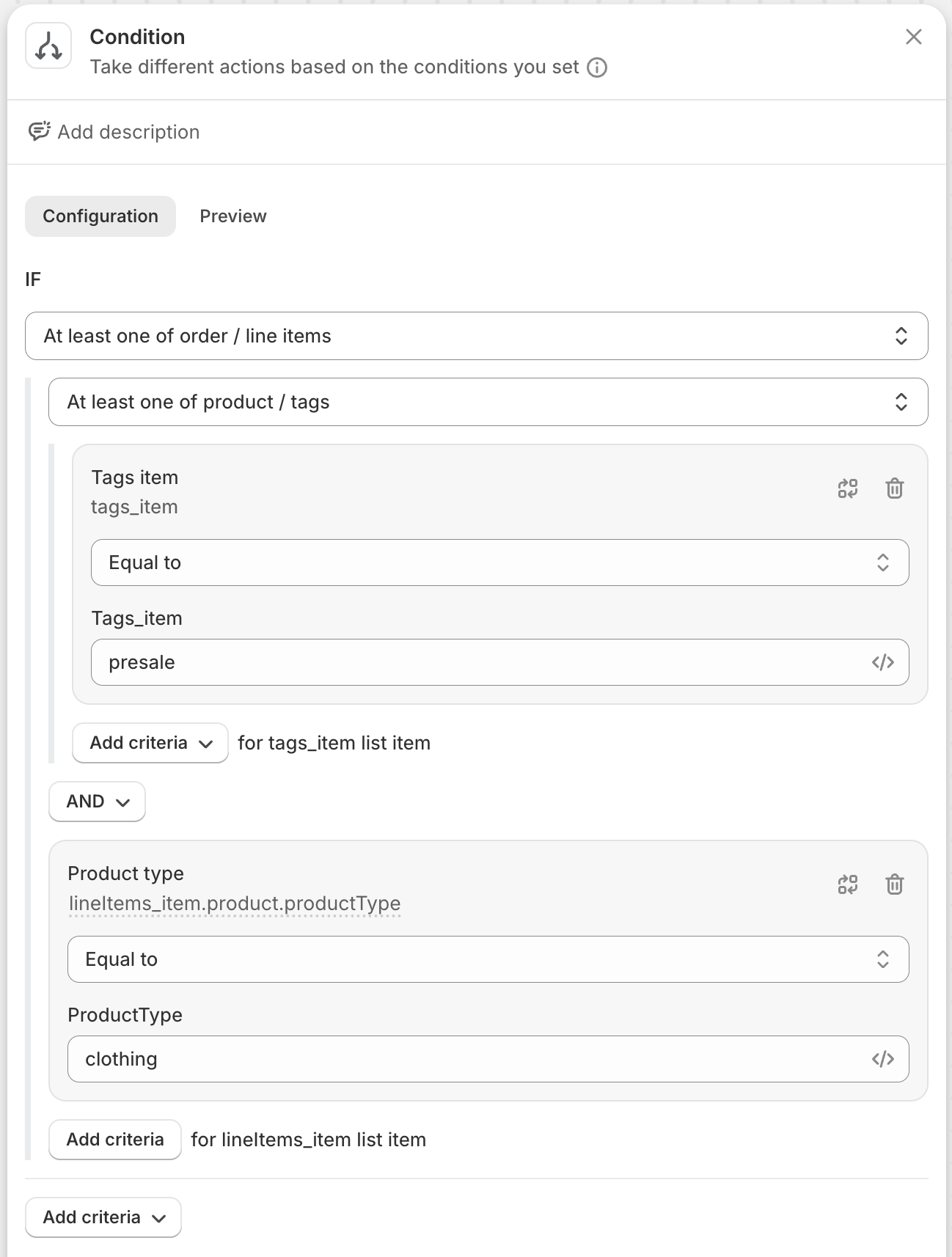
یہ کنڈیشن بنانے کے لیے، آپ کو چاہیے:
- پہلے معیار کے لیے order / lineItems / product / tags کا انتخاب کریں۔
- lineItems کی فہرست میں اسی آئٹم کے لیے معیار شامل کریں کا انتخاب کریں۔ نوٹ: یہاں غلط لسٹ آئٹم کا انتخاب کرنا ایک عام غلطی ہے۔
- دوسرے معیار کے لیے lineItems_item کو ٹاپ لیول آبجیکٹ کے طور پر اور پھر product / productType` کا انتخاب کریں۔ نوٹ: یہاں غلط آبجیکٹ کا انتخاب کرنا بھی ایک عام غلطی ہے۔
- دونوں معیارات کو یکجا کرنے کے لیے AND کا انتخاب کریں۔
- دونوں معیارات کے لیے ویلیوز
presaleاورclothingدرج کریں۔