Editing theme code
You can edit your theme code to make detailed changes to your online store with the code editor. Most of the files that make up a theme contain Liquid, Shopify's templating language. Theme files also contain HTML, CSS, JSON, and JavaScript. Edit the code for a theme only if you know HTML and CSS, and have a basic understanding of Liquid.
You can edit your theme's code only after you've purchased it. This includes using the AI code generator in the theme editor. If you're using a trial version of a paid theme, then you need to purchase it before you can make code changes.
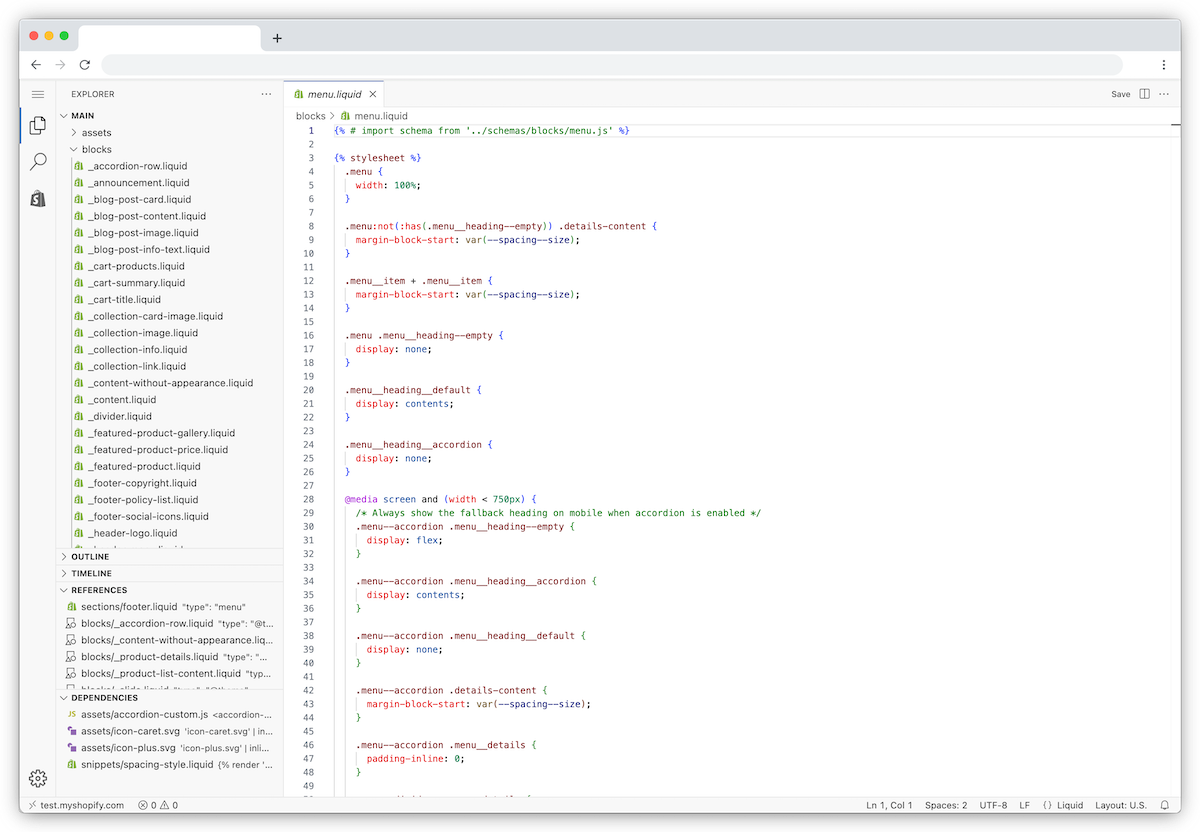
The code editor displays a directory of your theme's files, and a space to display and edit the files. When you click a file in the directory, it opens in the code editor. You can open and edit multiple files at the same time. You can also open and review multiple files at the same time.
On this page
Edit your theme code
You can use the code editor to modify your theme's files.
Steps:
Desktop
From your Shopify admin, go to Online Store.
Click
 > Edit code.
Mobile
From the Shopify app, tap the
 icon.
icon.In the Sales channels section, tap Online Store.
Tap Manage themes.
Tap
> Edit code.
Saving changes
When you edit a file, a dot displays next to the tab name to indicate unsaved changes. Click the Save button to save your changes. You can also enter ⌘ + S on Mac or Ctrl + S on Windows to save your changes.

Formatting theme code
To fix code indentation, open the Command Palette with ⌘ + Shift + P on Mac or Ctrl + Shift + P on Windows format, and then select Format document.
Steps:
From your Shopify admin, go to Online Store.
Click
> Edit code.Open the file that you want to format.
Enter
⌘+Pon Mac orCtrl+Pon Windows.In the command palette, enter format, then press
Enteron your keyboard.Save the file.

Tracking file changes
To restore a modified theme file to a previous version, use the Timeline view for that file.
The Timeline view restores one existing file at a time. It doesn't restore an entire theme, and it can't recover deleted theme files. Timeline history is finite, so older versions might not be available.
Restoring replaces the whole file contents, including changes you might want to keep. Before restoring a file, copy the current file contents somewhere safe if you might want to keep any changes.

Steps:
From your Shopify admin, go to Online Store.
Click
> Edit code.Open the existing file that you want to review or restore.
Optional: If you might want to keep any current changes, copy the current file contents somewhere safe before restoring.
In the Timeline view, click an entry in the timeline to compare the differences.
To replace the whole file contents with the selected previous version, right-click the timeline entry, and then select Restore contents.
Click Restore.
Theme Check
The code editor includes Theme Check, a feature that helps to prevent errors by providing immediate feedback as the code is being written, instead of discovering errors in your live theme.
In the code editor, Theme Check can identify the following errors in edited code:
- Parser blocking scripts, which can slow down a storefront
- Inconsistencies between translation files, such as missing translation keys or translations that don't match in a locale file
- Missing templates
Errors are indicated by a red line underneath the code. To view the error, hover your mouse over the highlighted line.
Searching and replacing in the code editor
You can search within the code editor in either of the following ways:
- Search the code of a specific file.
- Search the code of all files in the theme.
You can also replace code in a specific file or multiple instances across all theme files. You can also search for a file by name to open a file.
Searching within a file
You can search the code in a specific file, and replace the code. Use the arrow keys to review each instance of the code.

After you search for code, you can replace the code in a file.
Steps:
From your Shopify admin, go to Online Store.
Click
> Edit code.Open the file that you want to search.
Enter
⌘+Fon a Mac orCtrl+Fon Windows.In the Search field, enter your search term.
Optional: To replace code, complete the following actions:
- In the search modal, click the
 icon.
icon. - In the Replace field, enter the replacement code. You can click Preserve case to match the replacement code's capitalization to the existing instance.
- Click the Replace icon to replace instance at a time, or click the Replace all icon to replace all instances at one time.
Searching across all files
Click the search button in the left sidebar to search across all theme files. Results display every instance of your search term and which file it appears in.

Steps:
From your Shopify admin, go to Online Store.
Click
> Edit code.Click the
 icon to open the search panel.
 In the Search field, enter your search term.
Optional: To replace code, complete the following actions:
- In the search modal, click the icon.
- In the Replace field, enter the replacement code.
- Replace one instance at a time, or all instances at one time.
Advanced search options
To narrow down your search results, use one or more of the following search options:
- Match case returns search terms that match the case. For example, if you enter product, then the search highlights any instances of "product" or "Product". If you select Match case, then the search highlights instances of product only.
- Match Whole Word returns search terms that match the exact word, and excludes partial matches. For example, if you enter cart, then the search highlights instances of "cart" but not "carton".
- Use Regular Expression returns search results that match a regular expression (regex). A regex is a string of characters that specifies a match pattern in text.
In the Search panel, you can also select files and folders to include or exclude from the search results.
Click to open the advanced menu. You can enter any file or folder path in the files to include or files to exclude fields. To add more than one file or folder, separate them with a space and comma. For example, to search for files in the sections folder, enter ./sections in files to include field.
You can also search within a specific folder from the file directory view. Right-click on a folder, and then select Find in folder... from the dropdown menu.
Managing theme files
You can manage files in your theme code. You can delete files, add new files, rename files, and restore modified existing code files from their Timeline view when a previous version is available. Asset files, such as images, CSS, JavaScript, and fonts in the assets folder, don't have Timeline history.
Opening a theme file
To open a theme file, click on a folder, and then click on the file name from the explorer. You can also search for files by name or extension, and then open the file.
Steps:
From your Shopify admin, go to Online Store.
Click
> Edit code.Enter
⌘+Pon Mac orCtrl+Pon Windows.Enter the file name in the search bar and select the file, or select a file from the Recently opened list.
Adding a new theme file
To add a file, select a folder, click the New file icon, and then enter the file name and file extension.
File names can include characters A-Z, 0-9, and can't include character spaces. Separate words by dashes or underscores. A file extension is defined by a period . and the extension type. For example, .liquid or .css.
Steps:
From your Shopify admin, go to Online Store.
Click
> Edit code.Click the folder that you want to add a new file to.
Right-click the folder name and select New file... from the drop-down menu.
Enter a new name for the file.
Press
Enteron your keyboard.
Uploading a new asset
You can upload a new asset, such as an icon or image file, to the assets folder of the code editor.
Steps:
From your Shopify admin, go to Online Store.
Click
> Edit code.Right-click on the assets folder.
Click Upload....
Select the file that you want to upload.
Click Open.
Renaming a theme file
You can right-click a file to rename it. Make sure not to edit or remove the file extension. A file extension is defined by a period . and the extension type. For example, .liquid or .css. File names can include characters A-Z, 0-9, and can't include character spaces. Separate words by dashes or underscores. If the filename isn't valid, then the new file name won't save.
Steps:
From your Shopify admin, go to Online Store.
Click
> Edit code.Right-click on a file and select Rename... from the drop-down menu.
Enter a new name for the file.
Press
Enteron your keyboard.
Deleting a theme file
You can delete any files in your theme. Deleted theme files can't be recovered.
Steps:
From your Shopify admin, go to Online Store.
Click
> Edit code.Right-click on a file and select Delete permanently from the drop-down menu.
Click Delete.