Shopify Flow میں شیڈول، Get data، اور لوپنگ ورک فلو
زیادہ تر صورتوں میں، آپ ایک ورک فلو ایسے ٹرگر کے ساتھ متعدد شرائط اور ایکشن کو جوڑ کر بنا سکتے ہیں جو کسی ایونٹ کے وقوع پذیر ہونے پر چلتا ہے۔ زیادہ پیچیدہ استعمال کی صورتوں کے لیے، آپ کو معلوم ہو سکتا ہے کہ آپ جو کرنا چاہتے ہیں اس کے لیے کوئی ٹرگر موجود نہیں ہے، آپ کو اسے ایک مخصوص وقت پر چلانے کی ضرورت ہے، یا آپ کو ڈیٹا کی فہرست کے ساتھ کام کرنے کی ضرورت پڑ سکتی ہے۔ ان صورتوں میں، آپ ایڈوانسڈ ورک فلو بنانے کے لیے شیڈول کردہ وقت کے ٹرگر، Get data ایکشن، اور لوپ استعمال کر سکتے ہیں۔
ایک مثال کے طور پر، فرض کریں کہ آپ غیر تکمیل شدہ آرڈر کی روزانہ کی سمری حاصل کرنا چاہتے ہیں۔ فیچر کے اس گروپ کے ساتھ، آپ ایک ایسا ورک فلو چلا سکتے ہیں جو ہر روز ایک مخصوص وقت پر چلتا ہے، جو ان آرڈر کو حاصل کرتا ہے، اور پھر آپ کو ان کی ایک سمری بھیجتا ہے۔ آپ مزید مثالیں اور ٹیمپلیٹ دریافت کر سکتے ہیں جو ان ٹرگر اور ایکشن کا استعمال کرتے ہیں۔
اس صفحے پر
Scheduled time ٹرگر
کسی ایونٹ کی وجہ سے ورک فلو شروع کرنے کے بجائے، Scheduled time کا ٹرگر آپ کے مخصوص کردہ ایک خاص وقت اور تاریخ پر ورک فلو شروع کرتا ہے۔ آپ ورک فلو کو فی گھنٹہ، روزانہ، ہفتہ وار، یا ماہانہ دہرانے کے لیے بھی شیڈول کر سکتے ہیں۔ شیڈول سے چلنے کے نتیجے میں، کسٹمر، آرڈر، یا پروڈکٹ جیسا ڈیٹا استعمال کرنے کے لیے، آپ کو وہ ڈیٹا حاصل کرنے کے لیے ایکشن کا استعمال کرنا ہوگا۔ آپ Get data ایکشن استعمال کر کے ایسا کر سکتے ہیں۔
Scheduled time کا ٹرگر ہر 10 منٹ کے وقفے سے بھی چل سکتا ہے۔
Get data ایکشن
زیادہ تر ایکشن آپ کے سٹور میں کچھ تبدیل کرتے ہیں، مثال کے طور پر، کسٹمر میں ٹیگ شامل کرنا، یا کسی ایپ کو کمانڈ بھیجنا، جیسے کسی ایپ کو کسٹمر کو پش نوٹیفکیشن بھیجنے کی ہدایت دینا۔
Get data ایکشن Flow میں استعمال کے لیے آپ کے سٹور سے ڈیٹا حاصل کرتے ہیں۔ یہ ایکشن فلٹر کے ایک سیٹ کے ساتھ کیوری (query) کو کال کرتے ہیں، جیسے کہ صرف پچھلے دن اپ ڈیٹ ہونے والی کوئی چیز حاصل کرنا۔ یہ ایکشن اس ڈیٹا سے میل کھانے والے ڈیٹا کی ایک فہرست واپس کرتا ہے۔ مثال کے طور پر، Get order data کا ایکشن Admin API پر Order کیوری کو کال کرتا ہے اور آپ کی کیوری سے میل کھانے والے آرڈر کی ایک فہرست واپس کرتا ہے۔
Get data ایکشن صرف 100 آئٹم تک طویل فہرستوں پر چل سکتے ہیں۔
درج ذیل ایکشن آپ کے سٹور سے معلومات بازیافت کرتے ہیں تاکہ آپ اس ڈیٹا کو اپنے ورک فلو میں استعمال کر سکیں۔ ڈیٹا کو فلٹر کرنے کے طریقے اور کون سا ڈیٹا واپس کیا جاتا ہے اس کی تفصیلات کے لیے ہر ایکشن سے رجوع کریں:
- Get cash tracking session data
- Get collection data
- کمپنی کا ڈیٹا حاصل کریں
- کمپنی کی لوکیشن کا ڈیٹا حاصل کریں
- کسٹمر کا ڈیٹا حاصل کریں
- ڈسکاؤنٹ کا ڈیٹا حاصل کریں
- ڈرافٹ آرڈر کا ڈیٹا حاصل کریں
- فلفلمنٹ آرڈر کا ڈیٹا حاصل کریں
- گفٹ کارڈ کا ڈیٹا حاصل کریں
- لوکیشن کا ڈیٹا حاصل کریں
- میٹا آبجیکٹ اینٹری حاصل کریں
- میٹا آبجیکٹ اینٹری حاصل کریں
- آرڈر کا ڈیٹا حاصل کریں
- پروڈکٹ کا ڈیٹا حاصل کریں
- پروڈکٹ ویریئنٹ کا ڈیٹا حاصل کریں
- سیلنگ پلان گروپ کا ڈیٹا حاصل کریں
- سبسکرپشن بلنگ کی کوشش کا ڈیٹا حاصل کریں
- سبسکرپشن کنٹریکٹ کا ڈیٹا حاصل کریں
Get data ایکشن میں Liquid ٹیگ
جب آپ تاریخوں کے ساتھ Get data ایکشن استعمال کرتے ہیں، تو آپ اپنی کوئری میں تاریخوں کو تبدیل کرنے کے لیے date_minus اور date_plus Liquid ٹیگ استعمال کر سکتے ہیں۔ مثال کے طور پر، ورک فلو کے طے شدہ رن کے وقت سے 5 دن پہلے کی تاریخ کا حساب لگانے کے لیے، آپ درج ذیل Liquid استعمال کر سکتے ہیں:
{{ scheduledAt | date_minus: "5 days" }}ان ٹیگ کو استعمال کرنے کے طریقے کے بارے میں مزید تفصیلات کے لیے، Liquid ویری ایبل کی دستاویزات دیکھیں۔
For each لوپ
جب آپ Get data ایکشن استعمال کرتے ہیں، تو آپ کو آپ کی کوئری سے مماثل ڈیٹا کی ایک فہرست ملتی ہے۔ آپ اس فہرست پر لوپ کرنے کے لیے For each لوپ (iterate) ایکشن استعمال کر سکتے ہیں۔ ایک For each لوپ میں، آپ ایسی شرائط اور ایکشن استعمال کر سکتے ہیں جو صرف اسی آئٹم پر لاگو ہوتے ہیں۔
مثال کے طور پر، آپ ایک ایسا ورک فلو بناتے ہیں جو ہر پیر کو رن ہوتا ہے۔ یہ ورک فلو اس ہفتے کے دوران موصول ہونے والے آرڈر حاصل کرنے کے لیے آرڈر کا ڈیٹا حاصل کریں ایکشن استعمال کرتا ہے۔ اس کے بعد For each لوپ (iterate) getOrderData فہرست کے ذریعے واپس کیے گئے ہر آرڈر پر New order ٹیگ لاگو کرتا ہے۔ فہرست میں موجود تمام آرڈر کو ٹیگ کیے جانے کے بعد، ایک اندرونی ای میل بھیجی جاتی ہے جس میں بتایا جاتا ہے کہ ٹیگنگ مکمل ہو گئی ہے۔

ایگریگیشن ایکشن
فہرستوں کے ساتھ کام کرتے وقت، آپ بعد کی شرائط (Conditions) اور ایکشن (Actions) میں استعمال کرنے کے لیے آئٹم کی تعداد گننا چاہیں گے۔ مثال کے طور پر، آپ ای میل بھیجنے سے پہلے چیک کر سکتے ہیں کہ آیا 0 سے زیادہ نتائج موجود ہیں۔ Flow ورک فلو میں فہرست کے ڈیٹا پر حساب کتاب کرنے کے لیے یہ ایکشن فراہم کرتا ہے:
Shopify Flow میں جدید ورک فلو کی مثالیں
کچھ جدید ورک فلو کی مثالوں کا جائزہ لیں جنہیں آپ Shopify Flow میں استعمال کر سکتے ہیں:
- ان آرڈر کی روزانہ کی سمری حاصل کریں جو دو دن کی فلفلمنٹ ونڈو مس کر دیتے ہیں۔
- جب نیا آرڈر تیار ہو، تو چیک کریں کہ آیا اسی کسٹمر نے پچھلے 24 گھنٹوں کے اندر دیگر آرڈر دیے ہیں۔
- ہر روز، آؤٹ آف سٹاک پروڈکٹ کی فہرست والی ایک سمری ای میل حاصل کریں۔
- دن میں ایک بار، چارج بیک سے وابستہ تمام آرڈر تلاش کریں اور کسٹمر کو ٹیگ کریں۔
- جب کوئی نیا آرڈر بنایا جائے، تو معلوم کریں کہ کسٹمر نے پچھلے چھ مہینوں میں کتنے آرڈر کیے ہیں۔
- ہر روز، تمام کھلے ڈرافٹ آرڈر کی ایک فہرست حاصل کریں اور ایک Slack پیغام بھیجیں۔
ان آرڈر کی روزانہ کی سمری حاصل کریں جو دو دن کی فلفلمنٹ ونڈو مس کر دیتے ہیں
اس ورک فلو کو یہ تعین کرنے کے لیے استعمال کیا جا سکتا ہے کہ آیا کسی آرڈر نے شپنگ کی گارنٹی کی مدت مس کی ہے، اور اگر ایسا ہے تو ان آرڈر کی مالیت کتنی ہے۔
اس مثال میں، ورک فلو ہر روز شام 5:00 بجے رن ہوتا ہے۔ ورک فلو ایسے آرڈر کی فہرست حاصل کرنے کے لیے آرڈر کا ڈیٹا حاصل کریں ایکشن استعمال کرتا ہے جو دو دن کی شپنگ ونڈو کے اندر فلفل نہیں ہوئے تھے۔ پھر، For each ایکشن تمام تاخیر کا شکار ہونے والے آرڈر میں ایک ٹیگ شامل کرتا ہے۔ ورک فلو تاخیر کا شکار ہونے والے آرڈر کی تعداد کا تعین کرنے کے لیے Count ایکشن اور ان آرڈر کی مالیت کا تعین کرنے کے لیے Sum ایکشن بھی استعمال کرتا ہے۔ Count اور Sum ایکشن کے ذریعے بنائے گئے ویری ایبل کا استعمال آرڈر کی تعداد اور ان کی مالیت بتانے کی غرض سے ای میل بھیجنے کے لیے کیا جاتا ہے۔

اپنے سٹور میں یہ ورک فلو ٹیمپلیٹ انسٹال کریں۔
جب کوئی نیا آرڈر بنایا جائے، تو چیک کریں کہ آیا اسی کسٹمر نے پچھلے 24 گھنٹوں کے اندر دیگر آرڈر دیے ہیں
اس ورک فلو کا استعمال اس بات کا تعین کرنے کے لیے کیا جا سکتا ہے کہ آیا ایک ہی کسٹمر نے ایک ہی دن میں متعدد آرڈر دیے ہیں، اور اگر ایسا ہے، تو یہ فلفلمنٹ کو ہولڈ پر رکھتا ہے تاکہ آرڈر ایک ساتھ بھیجے جا سکیں۔
اس مثال میں، جب بھی کوئی نیا آرڈر بنایا جاتا ہے تو ورک فلو رن ہوتا ہے۔ ورک فلو پچھلے دن کسٹمر کی جانب سے دیے گئے آرڈر کی فہرست حاصل کرنے کے لیے آرڈر کا ڈیٹا حاصل کریں ایکشن استعمال کرتا ہے۔ پھر، Count ایکشن ان آرڈر کی تعداد کا تعین کرتا ہے جو کسٹمر نے دیے ہیں۔ اگر ایک ہی دن میں ایک ہی کسٹمر کی طرف سے دو یا زیادہ آرڈر دیے گئے ہیں، تو آرڈر کی فلفلمنٹ ہولڈ پر رکھی جاتی ہے اور آرڈر میں ٹیگ شامل کیے جاتے ہیں۔
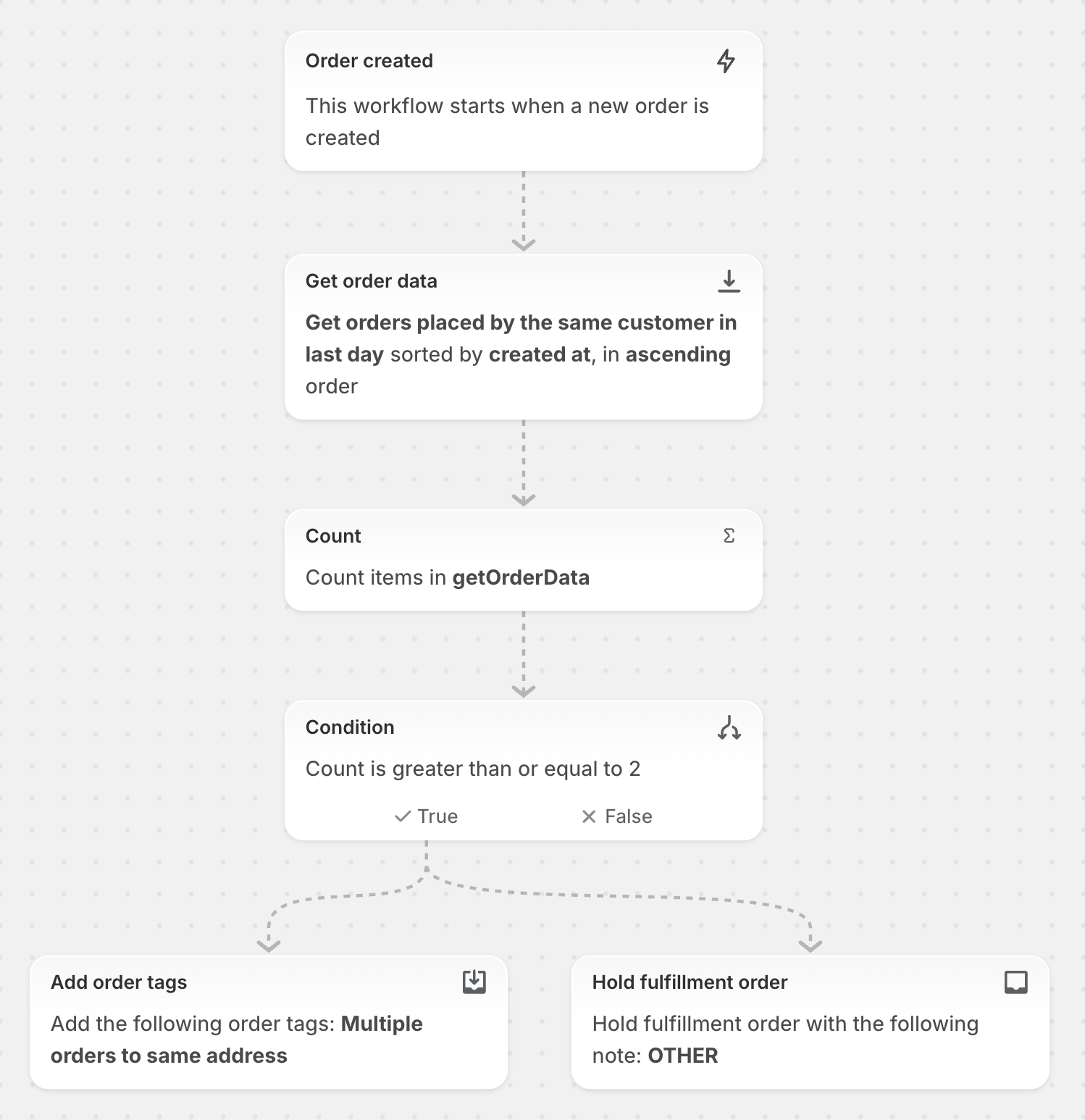
اپنے سٹور میں یہ ورک فلو ٹیمپلیٹ انسٹال کریں۔
ہر روز، آؤٹ آف سٹاک پروڈکٹ کی فہرست والی ایک سمری ای میل حاصل کریں
اس ورک فلو کو آپ کی تمام آؤٹ آف سٹاک پروڈکٹ کی فہرست بنانے اور ای میل بھیجنے کے لیے استعمال کیا جا سکتا ہے۔
اس مثال میں، ورک فلو ہر روز رات 9:00 بجے رن ہوتا ہے۔ ورک فلو ایسی پروڈکٹ کی فہرست حاصل کرنے کے لیے پروڈکٹ کا ڈیٹا حاصل کریں ایکشن استعمال کرتا ہے جن کی کوئی انوینٹری نہیں ہے۔ Count ایکشن آؤٹ آف سٹاک آئٹم کی تعداد کا تعین کرتا ہے۔ آرڈر کا ڈیٹا حاصل کریں اور Count ایکشن کے ذریعے تخلیق کردہ ویری ایبل کا استعمال پروڈکٹ کی تعداد اور ان پروڈکٹ کی فہرست کو ظاہر کرنے والی ای میل بھیجنے کے لیے کیا جاتا ہے۔

اپنے سٹور میں یہ ورک فلو ٹیمپلیٹ انسٹال کریں۔
دن میں ایک بار، چارج بیک سے وابستہ تمام آرڈر تلاش کریں اور کسٹمر کو ٹیگ کریں
یہ ورک فلو ان کسٹمر کو ٹریک کرنے کے لیے استعمال کیا جا سکتا ہے جنہوں نے چارج بیک شروع کیا ہے۔
اس مثال میں، ورک فلو ہر روز صبح 10:00 بجے رن ہوتا ہے۔ ورک فلو ایسے آرڈرز کی فہرست حاصل کرنے کے لیے Get order data ایکشن استعمال کرتا ہے جن میں چارج بیکس ہوتے ہیں۔ پھر، For each ایکشن ان تمام کسٹمرز میں ایک ٹیگ شامل کر دیتا ہے جنہوں نے وہ آرڈرز دیے تھے۔

اپنے سٹور میں یہ ورک فلو ٹیمپلیٹ انسٹال کریں۔
جب نیا آرڈر تخلیق کیا جائے، تو معلوم کریں کہ کسٹمر نے پچھلے چھ ماہ میں کتنے آرڈر کیے ہیں
یہ ورک فلو یہ جاننے کے لیے استعمال کیا جا سکتا ہے کہ کسٹمر نے پچھلے چھ ماہ میں کتنے آرڈر کیے ہیں اور اس میں لائلٹی ٹیگ بھی شامل کیے جا سکتے ہیں۔
اس مثال میں، جب بھی کوئی نیا آرڈر تخلیق ہوتا ہے تو ورک فلو رن ہوتا ہے۔ ورک فلو ان آرڈر کی فہرست حاصل کرنے کے لیے Get order data ایکشن استعمال کرتا ہے جو کسٹمر نے پچھلے چھ ماہ میں کیے تھے۔ پھر، Count ایکشن ان آرڈر کی تعداد کا تعین کرتا ہے جو کسٹمر نے کیے ہیں، اور Sum ایکشن ان آرڈر کی ویلیو کا تعین کرتا ہے۔ اگر آرڈر کی تعداد پانچ کے برابر یا اس سے زیادہ ہے تو کسٹمر ٹیگ شامل کیا جاتا ہے، اور اگر آرڈر کی ویلیو $100 کے برابر یا اس سے زیادہ ہے تو ایک اور ٹیگ شامل کیا جاتا ہے۔

اپنے سٹور میں یہ ورک فلو ٹیمپلیٹ انسٹال کریں۔
ہر روز، تمام اوپن ڈرافٹ آرڈر کی فہرست حاصل کریں اور Slack میسج بھیجیں
یہ ورک فلو ایک Slack میسج بھیجنے کے لیے استعمال کیا جا سکتا ہے جو یہ ظاہر کرتا ہے کہ آیا آپ کے سٹور میں کوئی اوپن ڈرافٹ آرڈر موجود ہیں، اور اگر ہیں تو کتنے۔
اس مثال میں، ورک فلو ہر روز شام 5:00 بجے رن ہوتا ہے۔ ورک فلو Open سٹیٹس والے ڈرافٹ آرڈر کی فہرست حاصل کرنے کے لیے Get draft order data ایکشن کا استعمال کرتا ہے۔ پھر، Count ایکشن اوپن ڈرافٹ آرڈر کی تعداد کا تعین کرتا ہے۔ Count ایکشنز سے تخلیق کردہ ویری ایبل کو اوپن ڈرافٹ آرڈر کی تعداد بتانے کے لیے Slack میسج بھیجنے کے لیے استعمال کیا جاتا ہے۔
